
WP Glossary是一款百科全书|词典|知识库词汇表术语库生成器WordPress插件,可帮助您为网站中的百科全书/词典/知识库/维基/词典创建自己的词汇表或术语库。该插件基于自定义文章类型工作,因此您可以使用完整的编辑器。想使用现有的文章类型吗?不用担心,您仍然在正确的页面上。此插件允许您选择现有的文章类型而不是插件的默认类型。
主要特色
- 完全可定制
- 移动友好(响应式)
- 易于安装和使用
- 易于使用的自定义过滤字母/字母集超过默认的英文字母。这样它也有助于为其他语言创建过滤器列表(例如:希伯来语、希腊语)
- 与 WordPress 主题和插件高度兼容
- 通过将每个突出显示的短语或术语自动链接回专用术语定义页面来增强SEO
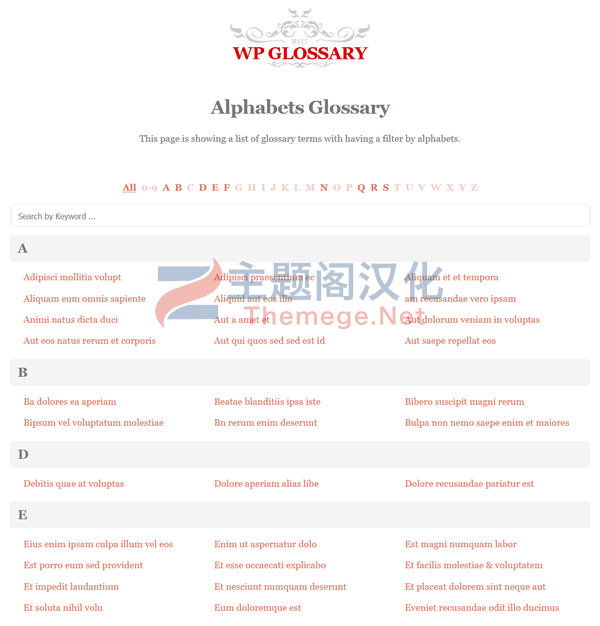
特征:词汇索引页
该模块允许您创建和显示您自己的具有良好动画效果的术语表。
- 使用简单的界面向您的网站添加无限的词汇表
- 按字母/类别索引术语,具有良好的动画效果
- 键入时即时搜索
- 也支持自定义/现有的帖子类型
- 允许您使用任何现有的帖子类型而不是插件的默认类型
- 允许您更改词汇表术语 slug/seo-keyword
- 允许您选择词汇表术语列表页面的布局
- 允许您从列表过滤器中启用/禁用空字母/类别
特征:词汇表链接
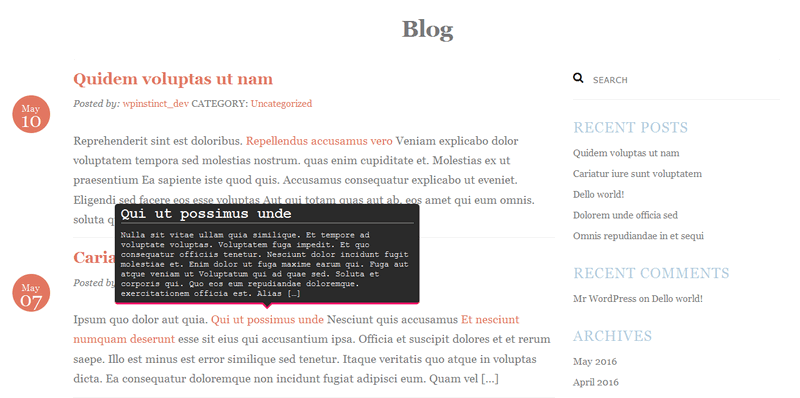
此模块允许您在页面/帖子中自动超链接术语/短语。每次词汇表术语出现在您的页面/帖子中时,都会自动链接到它们的 URL。通过这种方式,它通过自动将每个突出显示的短语或术语链接回专用术语定义页面来增强搜索引擎优化。
- 允许您启用/禁用链接
- 允许您选择要为其启用链接化的特定帖子类型
- 允许您启用/禁用完整描述、简短描述、类别/术语描述、文本小部件和注释的链接
- 允许您在主页上禁用链接
- 允许您为词汇表术语添加同义词
- 允许您限制要链接的每个术语的最大出现次数
- 允许您启用/禁用词汇表术语的区分大小写检查
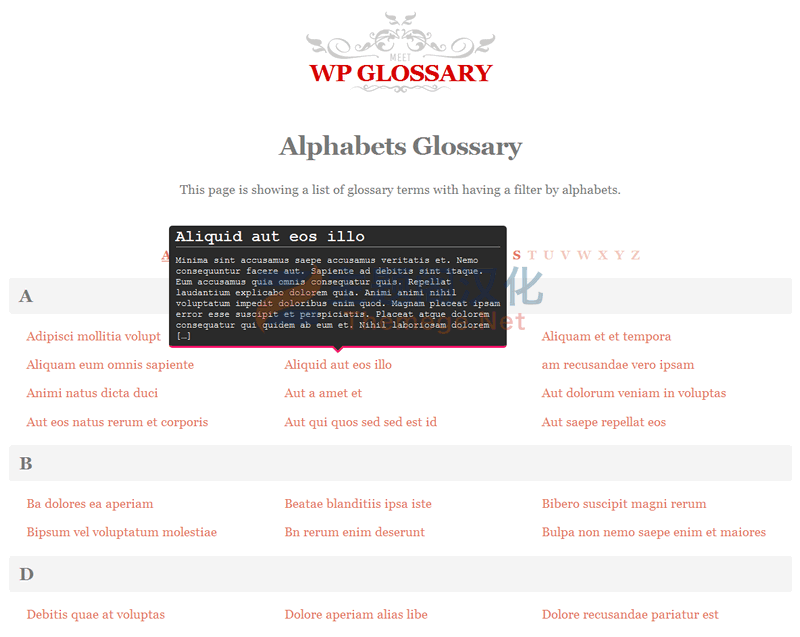
特征:词汇表工具提示
此模块允许您在用户将鼠标悬停在页面/帖子中的词汇表链接术语/短语上时显示工具提示窗口。这有助于用户快速概览突出显示的术语。
- 允许您启用/禁用工具提示
- 提供多个工具提示窗口主题可供选择
- 允许您在工具提示窗口中附加术语标题和内容
- 允许您在工具提示窗口中显示简短或完整说明
- 允许您限制工具提示窗口中的最大字数
- 提供多种动画类型
- 提供多个工具提示位置以从中选择一个
- 允许您显示/隐藏工具提示气泡箭头
- 允许您设置工具提示窗口的最小和最大宽度
- 允许您设置工具提示的动画速度(以毫秒为单位)
- 允许您设置工具提示开始动画所需的延迟时间(以毫秒为单位)
- 允许您启用/禁用触摸设备上的工具提示
特征:词汇表自定义样式
该模块允许您轻松地进行自定义样式,而无需任何 CSS 技能。您可以在不知道颜色代码的情况下使用颜色选择器选择颜色,并且可以尝试使用不同的字体大小来查看哪种字体适合网站。
- 允许您为过滤器按钮、标题和术语选择字体颜色
- 允许您为过滤器按钮和术语选择悬停/活动字体颜色
- 允许您为术语选择标题颜色
- 允许您为背景、内容、标题和链接选择颜色
词汇表短代码
基本简码: [wpg_list]
在您的页面或帖子中的任何位置使用此简码,它将开始以您期望插件执行的相同样式显示词汇表术语。有一些属性具有相同的短代码,您可以在下一步中找到这些属性。并非所有这些属性都需要与短代码一起添加,并且仅根据您的需要添加。如果您不使用这些属性,短代码将使用插件设置。
完整短代码:
[wpg_list title=”” layout=”one_column/two_column/three_column/four_column/five_column” alphabet_set=”A,B,C,D,E,…” hide_empty=”yes/no” hide_all=”yes/no” hide_numeric=”yes/no” post_type=”glossary” template=”alphabet/category” taxonomy=”glossary_cat” taxonomy_terms_to_include=”optional/1,2,3..” taxonomy_terms_to_exclude=”optional/1,2,3..” uncategorized_term_name=”“]
- title: This option is for nothing at the time with the plugin and is here just for future references/updates.
- layout: Select the number of columns you want per row on Glossary Index Page. By default, it shows three columns per row but you can change it to any from one to five columns. This option allows you to choose one from following five options:
- one_column
- two_column
- three_column
- four_column
- five_column
- alphabet_set: By default, plugin uses A to Z alphabet set for filter on Glossary Index Page. Suppose you want to:
- change the order of the alphabets
- show only few alphabets
- show a different set of characters
- show characters list for other language (eg: Hebrew, Greek )
- show multiple rows rather than all the alphabets in single row or all English alphabets in first row and Hebrew in next row
You can use this option for all these. Use comma (,) for multiple alphabets. For multiple rows, simply use new line (ENTER from keyboard).
EG:
A,B,C,D,E,F
M,N,O,P,Q,R - hide_empty: In case, some of the alphabets from filter list, on Glossary Index Page, doesn’t have any glossary term/phrase. These alphabets will show as disabled in the list. Selecting this option will remove these disabled alphabets from the list completely. This option allows you to choose one from following two options:
- yes
- no
- hide_all: Plugin, by default, shows ALL at the starting of the filter list on Glossary Index Page which shows all the glossary terms/phrases when clicked. For example, you click on alphabet A from the filter list, it will come up with all the glossary terms starting with A. Now you want to see back the whole list of terms. Clicking ALL does this for you. If you want to show it no more in the filter list, you can enable this option. This option allows you to choose one from following two options:
- yes
- no
- hide_numeric: This option works almost in the same way Hide “All” Filter works but for the glossary terms starting with number. Plugin shows 0-9 just after All in the filter list on Glossary Index Page and you can remove it by enabling this option. This option allows you to choose one from following two options:
- yes
- no
- post_type: Plugin uses its own custom post type for Glossary Index Page. In case if you want to show WordPress’s default post type ( Page, Post ) or any other custom post type you can choose under this option.
- template: Plugin comes up with two type of glossaries: Alphabet Glossary and Taxonomy/Category Glossary. Few times, you want to list all the categories with their posts in glossary style and this option does it for you. By default, template uses alphabet to works as Alphabet Glossary and you can change it to category in case you need to show Taxonomy/Category Glossary. This option allows you to choose one from following two options:
- alphabet
- category
- taxonomy: This option works better with template=”category” from previous option. That way you can decide which taxonomy you want to load the posts for.
EG: You want to list all the products with WooCommerce categories, you can set it like taxonomy=”product_cat”. - taxonomy_terms_to_include: By default, Previous option ( taxonomy ) loads posts for all the categories. This option allows you to include only specific categories to load the posts for. For this you have to enter comma separated category ID’s with this option.
- taxonomy_terms_to_exclude: By default, Previous option ( taxonomy ) loads posts for all the categories. This option allows you to exclude specific categories to load the posts from rest of the categories. For this you have to enter comma separated category ID’s with this option.
- uncategorized_term_name: Its not necessary that all the posts will be categorized properly and few of those can still be without having any category assigned. Using template=”category” and it shows only those posts which have at-least one category assigned. This option allows you to show uncategorized posts as well under same name category you pass with this option.
演示地址
- Alphabets Glossary
- Categories Glossary
- Custom Post Type Glossary
- Linkify – Blog Page
- Linkify – Single Page, Widget, Comments
- WP Glossary Widget